


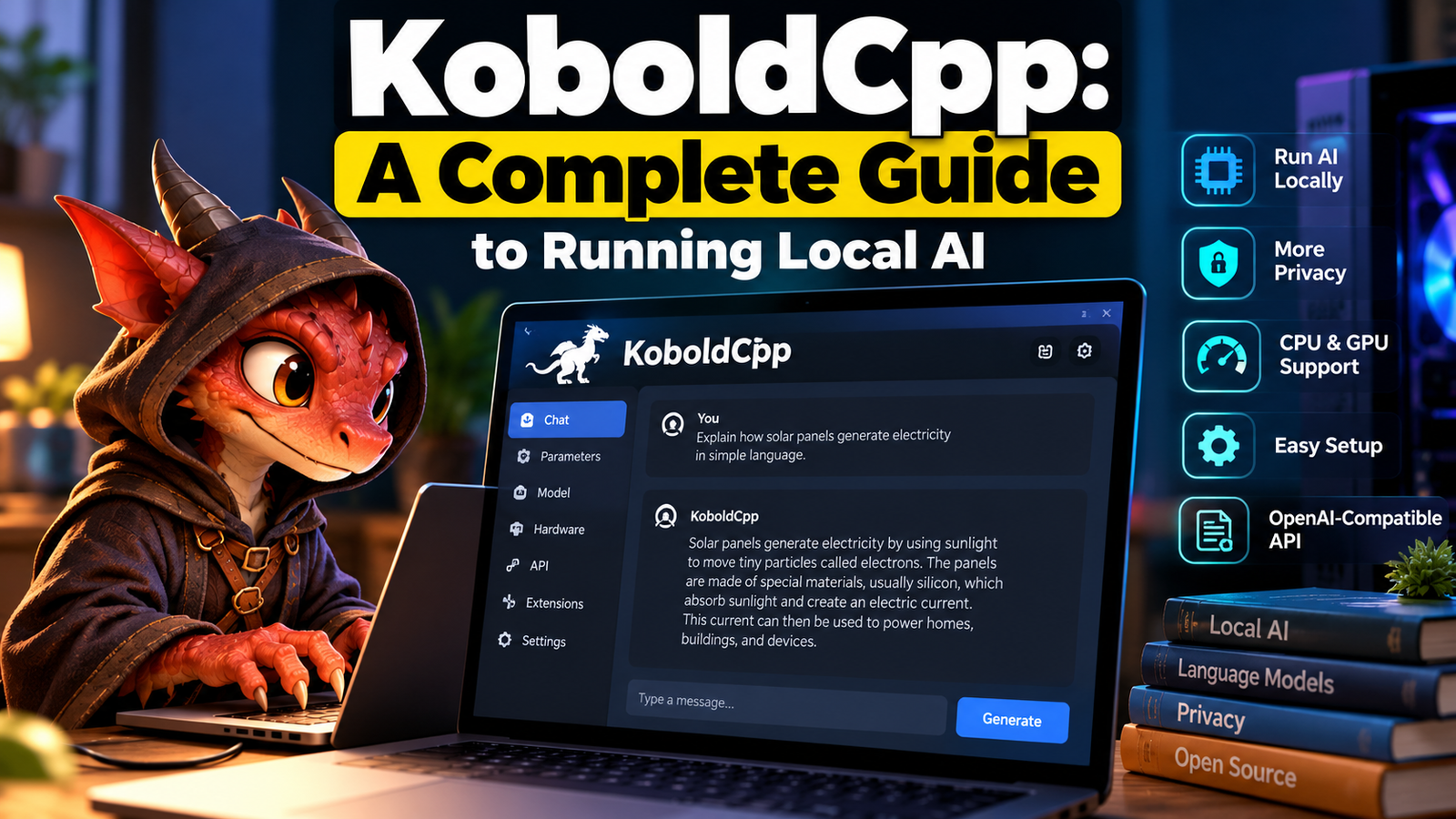
KoboldCpp is a free, open-source application that lets you run compatible artificial intelligence models directly on your computer instead of relying entirely on cloud-based services. Built on the llama.cpp ecosystem, it provides a relatively simple way to load local language models, generate text, write stories, experiment with roleplay, and connect AI applications such as SillyTavern. It also includes a browser-based interface, so you can interact with a model without building your own chatbot from scratch.
One reason KoboldCpp attracts AI enthusiasts is its portable design. You can run it without a conventional installation process, choose an appropriate model, and configure CPU or GPU acceleration according to your hardware. However, the software itself does not determine how intelligent or fast your assistant will be. Those results depend heavily on the model you select, available memory, context length, and hardware configuration.
This guide explains how KoboldCpp works, how to set it up, which features matter most, and what to consider before using it for writing, coding, research, or private AI experimentation.
What Is KoboldCpp?
KoboldCpp is a local AI inference application designed primarily to run compatible GGUF language models on consumer hardware. Inference is the process of using a trained model to generate a response from an input prompt.
Rather than sending every prompt to a remote AI provider, you can load a model stored on your own computer and generate responses locally. KoboldCpp includes KoboldAI Lite, a browser-based interface for chatting and creative writing, and provides API endpoints that allow compatible third-party applications to connect to the running model.
For example, a writer could load a compatible language model, open the local interface in a browser, and use it to develop characters, outline a story, or revise a scene. A developer could connect another application to the same local server and use the model as an AI backend.
KoboldCpp is not itself a new language model. It is the software that loads and runs a model. The distinction matters because the quality of the answers depends on the underlying model, not simply on the application used to run it.
How Does KoboldCpp Work?
KoboldCpp connects a model file, your computer’s hardware, and an interface where you can submit prompts and receive generated responses.
The process is straightforward:
- Choose a model: Obtain a compatible model file, commonly in GGUF format.
- Load the model: Open KoboldCpp and select the file through its launcher.
- Configure hardware: Choose a suitable processing backend and adjust memory-related settings.
- Start the server: Launch the application and open its web interface.
- Generate responses: Enter a prompt and let the loaded model produce text.
Behind the interface, the model processes tokens, which are small units of text used by language models. It predicts subsequent tokens based on the prompt and the conversation history, continuing until it reaches a stopping condition or generation limit.
This is why context size matters. A larger context can accommodate more conversation history or longer documents, but it can also increase memory use and processing demands. Increasing it does not automatically make the model more accurate.
Understanding GGUF Models
GGUF is a model file format commonly used by llama.cpp-based inference software. It packages model information and weights in a format that compatible applications can load.
Many GGUF models are quantized. Quantization reduces the numerical precision used to represent model weights, often lowering memory requirements and making larger models practical on consumer computers.
For example, a quantized version of a model may require considerably less memory than its full-precision counterpart. The trade-off is that quantization can affect output quality, although the impact varies by model, quantization method, and task.
A GGUF file is not automatically compatible with every model architecture or every software version. Before downloading a model, check its architecture, supported context length, license, and compatibility with your KoboldCpp release.
What Happens When You Send a Prompt?
Suppose you enter the following prompt:
Explain how solar panels generate electricity in simple language.
KoboldCpp passes the prompt to the loaded model, which generates a response token by token. If the conversation contains earlier messages, the relevant conversation history may also be included, subject to the configured context window.
Key Features of KoboldCpp
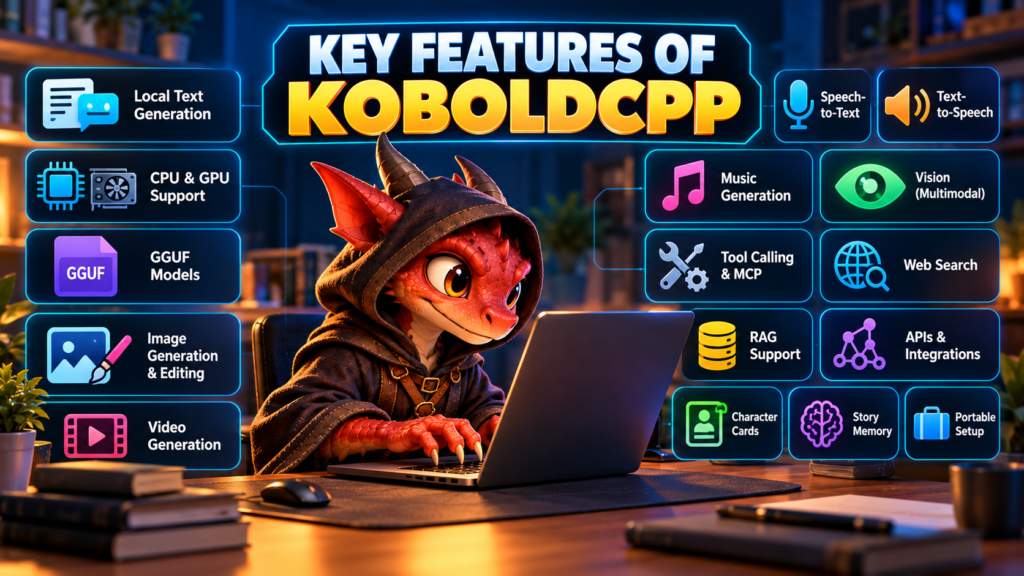
KoboldCpp offers more than a basic text-generation window. Its main strengths are local model execution, flexible hardware support, a built-in interface, and compatibility with other AI applications.
1. Local AI Text Generation
You can use KoboldCpp for creative writing, brainstorming, roleplay, summarization, and general question answering. The quality of the results depends on the selected language model and its training.
For example, a content creator could ask a local model to generate five headline variations, outline a blog post, or suggest improvements to a paragraph. Important factual claims should still be checked against reliable sources.
2. Built-In Web Interface
KoboldAI Lite gives you a browser-based interface for chatting with your loaded model. You do not need to develop a separate frontend to start experimenting.
The default local address is http://localhost:5001. This address generally works only on the computer running KoboldCpp.
3. CPU and GPU Acceleration
KoboldCpp can run models on a CPU or use supported GPU backends to improve performance.
- CUDA: For supported NVIDIA graphics cards. Usually the preferred starting point for NVIDIA users who have a compatible build and driver.
- Vulkan: Supports many NVIDIA, AMD, and Intel graphics devices. It is a useful option when CUDA is unavailable.
- Metal: The native graphics backend used by the KoboldCpp build for Apple Silicon Macs.
- CPU-only execution: Allows local inference without a supported GPU, although generation can be slower depending on the processor and model.
AMD users on Linux can also investigate the separately distributed experimental ROCm build, but Vulkan is a more straightforward starting point for many configurations.
4. OpenAI-Compatible API
KoboldCpp can expose an API that compatible applications use to send prompts and receive generated responses. This makes it useful for developers and people who want to integrate a local model into another interface.
The default OpenAI-compatible endpoint is:
http://localhost:5001/v1
KoboldCpp also supports its own API, along with additional compatibility endpoints. Compatibility does not mean every feature of an external service will work identically. Applications may use different tools, request formats, or model capabilities.
5. Additional AI Capabilities
Depending on the software version, model files, and configuration, KoboldCpp can support more than text generation. Its documented features include image generation, speech-to-text, text-to-speech, music generation, and vision-related input.
These capabilities require the appropriate models and supporting components. Loading a text-only language model will not automatically enable image generation or audio processing.
How to Download and Install KoboldCpp
KoboldCpp is designed to run as a portable application, so most users do not need a conventional installer. The exact executable depends on your operating system, processor, and graphics hardware.
Step 1: Download the Official Application
Start with the official KoboldCpp website or its official GitHub releases page. Choose the appropriate release for your system.
The project provides builds for supported Windows and Linux configurations, as well as a dedicated Apple Silicon build. Avoid downloading executable files from unfamiliar third-party websites.
Step 2: Choose a Compatible AI Model
KoboldCpp is the inference software; you must supply a model to generate responses.
A typical workflow involves downloading a compatible GGUF model from an AI model repository. Before downloading, review the model information and check:
- Whether the model supports your intended task.
- The GGUF file’s quantization and size.
- The model’s stated context limit.
- Its license and any usage restrictions.
- Whether the model architecture is supported by your KoboldCpp version.
A smaller quantized model is often a more practical first choice than a large model that exceeds your computer’s memory.
Step 3: Launch KoboldCpp
Open the downloaded application and locate the model-selection field in the launcher. Browse to your downloaded model file.
Choose a suitable backend, review the context size, and leave advanced options at their defaults unless you have a specific reason to change them.
Step 4: Configure Your Hardware
If you have a compatible NVIDIA GPU, start with CUDA. For many AMD or Intel graphics configurations, try Vulkan. If you do not have a suitable graphics backend, CPU execution is an option.
The GPU Layers setting controls how much of the model is offloaded to graphics memory. The automatic setting is a sensible starting point; manually increasing it without enough available VRAM can cause memory problems.
Step 5: Launch and Test the Model
Click Launch and wait for the model to load. Once the server is running, open http://localhost:5001 in your browser if it does not open automatically.
Try a simple prompt, such as asking the model to summarize a short paragraph. If it responds correctly, you have a working local AI setup.
KoboldCpp Hardware Requirements: RAM, VRAM, and Context
Hardware requirements depend on the model, its quantization, the context window, and the amount of work assigned to the GPU. There is no single RAM or VRAM figure that guarantees every model will run well.
System RAM
System RAM stores model data and supports other parts of inference. CPU-only setups rely heavily on it, and partially offloaded configurations may still need substantial system memory.
A useful initial estimate is to allow memory for the model file, context cache, runtime overhead, and the operating system. A model file’s size is only a starting point, not the complete memory requirement.
GPU VRAM
VRAM is the dedicated memory available on your graphics card. If the model and its context fit comfortably in VRAM, GPU acceleration can make generation much faster. If they do not fit, KoboldCpp may need to keep some model layers in system memory, depending on the configuration.
This can still work, but transferring work between system RAM and GPU memory may reduce performance.
Context Size
Context size determines how much prompt text, conversation history, and generated output the model can handle together.
A larger context can be valuable for long stories, extended conversations, or document analysis. However, it consumes additional memory and does not override the model’s own context limitations.
For beginners, use a context size supported by the model and increase it only when your task requires more history.
How to Choose the Right Model for KoboldCpp
Choosing the right model is often more important than adjusting dozens of settings. Consider the task first, then balance model quality against available memory and generation speed.
| Model consideration | What to look for |
|---|---|
| Creative writing | A model that performs well at storytelling and follows narrative instructions |
| General assistance | Strong instruction-following and clear responses |
| Coding | A model trained or evaluated for programming tasks |
| Memory usage | A quantized file that fits your available RAM and VRAM |
| Long conversations | A supported context window large enough for your needs |
| Compatibility | A supported architecture and compatible GGUF file |
A model’s advertised parameter count is not enough to judge performance. Two models of similar size may behave differently because of training data, fine-tuning, architecture, and quantization.
What Does Quantization Mean in Practice?
Suppose two files contain quantized versions of the same model. The smaller file may require less memory, making it easier to run on a modest computer. The larger or higher-precision version may preserve more of the original model’s numerical detail, but it can demand more resources.
There is no universal quantization choice that produces the best results for every task. If the smaller version answers your prompts accurately and runs at an acceptable speed, it may be the better practical option.
Practical Uses of KoboldCpp
KoboldCpp is useful when you want to experiment with local language models or connect them to other applications without relying on a hosted inference service for every request.
Creative Writing and Roleplay
Writers can use local models to brainstorm plot developments, develop fictional characters, draft dialogue, or explore alternative scenes. KoboldAI Lite supports creative workflows, including character-card imports.
For example, a novelist might ask a model to produce three possible responses for a character in a tense scene, then choose and edit the strongest one.
AI-Assisted Coding
Developers can connect compatible coding tools to KoboldCpp’s API and experiment with local code generation or explanation. The quality of the result depends on the model’s programming ability.
Generated code should be tested, reviewed for security issues, and checked against the actual project requirements. A local model is not automatically a reliable substitute for testing or code review.
Research and Document Summaries
A local model can summarize text you provide, identify themes, or help organize notes. This can be convenient for material that you prefer not to send to an external AI service.
However, the model can still misinterpret documents or invent details. Check important statements against the original source, particularly in legal, financial, medical, or academic work.
Private Experimentation
Researchers and hobbyists can use KoboldCpp to test prompts, compare quantized models, explore context behavior, or build prototypes against a local API.
This flexibility makes it useful for experimentation, but a local setup still needs suitable hardware, model licenses, and sensible security practices.
KoboldCpp and SillyTavern: How They Work Together
KoboldCpp and SillyTavern are complementary tools. KoboldCpp runs the model and provides the API, while SillyTavern provides an alternative interface for conversations, character-based chats, and related workflows.
You can use KoboldCpp by itself if its built-in interface meets your needs. If you prefer SillyTavern’s interface and features, connecting the two lets you use a compatible local model within that environment.
A typical setup looks like this:
- Download and launch KoboldCpp.
- Load a compatible GGUF model.
- Wait until the local API is available.
- Open SillyTavern and choose its KoboldCpp connection option.
- Enter the local server address, usually
http://localhost:5001. - Test the connection and send a message.
The exact labels can vary between versions, so check the relevant setup instructions if your interface differs.
One important distinction: SillyTavern does not supply the underlying model simply because it is connected to KoboldCpp. The model must already be loaded and available through the server.
KoboldCpp vs. Ollama vs. llama.cpp
These tools overlap, but they serve slightly different needs. The best option depends on whether you value a simple interface, a straightforward model-management workflow, or more direct control over inference.
| Tool | Main purpose | Best suited for |
|---|---|---|
| KoboldCpp | Portable local inference with a built-in creative-chat interface and API support | Users who want a relatively simple launcher and flexible local AI workflows |
| Ollama | Local model runtime with a convenient command-line workflow and integrations | Users who want straightforward model management and application integration |
| llama.cpp | Core inference project with command-line and server capabilities | Developers and technically confident users who want direct control over inference |
KoboldCpp builds on the llama.cpp ecosystem and adds its own launcher, interfaces, and integrations. Ollama offers a different workflow for obtaining and running supported models.
Neither tool is universally faster or better. Performance varies with the model, quantization, hardware, software version, and configuration. If you already use one of these tools successfully, switching may not offer a meaningful benefit unless you need a specific feature.
Advantages and Limitations of KoboldCpp
Before choosing a local AI runtime, consider both the convenience it offers and the practical trade-offs.
Main Advantages
- No required subscription: The application is free and open source under the AGPL-3.0 license. Individual model licenses may impose separate conditions.
- Local inference: Compatible models can generate responses on your own hardware.
- Portable setup: Most supported users can launch a ready-made executable without a traditional installation.
- Hardware flexibility: Supported configurations include CPU execution and several GPU backends.
- Built-in interface: You can start chatting without building another application.
- API integration: Compatible software can use KoboldCpp as a local inference backend.
Important Limitations
- Hardware affects performance: Large models and long contexts can require substantial memory.
- Model quality varies: The application cannot turn a weak model into a highly capable one.
- Setup still requires some learning: Model formats, quantization, backends, and context settings can confuse new users.
- Local models can make mistakes: They may hallucinate facts, misunderstand instructions, or produce insecure code.
- Not every model is supported: Architecture and software-version compatibility matter.
- Local does not mean automatically secure: Other devices or users may be able to access a server if networking is configured carelessly.
For most beginners, the best approach is to start with one compatible model, use the default settings, and make changes only when a real performance or compatibility problem appears.
Privacy and Security When Running KoboldCpp
Running inference locally can reduce the need to send prompts to a cloud AI provider. If the model is already downloaded and your workflow does not use external services, text generation can take place without sending those prompts to a remote inference API.
However, local inference is not a guarantee that every part of your workflow stays offline. Downloading models, using web-search tools, connecting external services, or enabling remote access can involve network communication.
There are several precautions worth following:
- Download executable files from the official project releases.
- Review model licenses and the provenance of downloaded files.
- Keep the server restricted to your own computer unless remote access is necessary.
- Set a password before exposing the service to other devices or enabling a remote tunnel.
- Do not assume every endpoint is protected equally when sharing a server.
- Avoid connecting untrusted tools or integrations that can access sensitive data.
Certain image-generation and text-to-speech endpoints may not be protected by the ordinary server password in the same way as text generation. Treat a publicly reachable instance as a security-sensitive service.
For confidential work, also consider where prompts, logs, uploaded files, and application data are stored. A local model can improve control over data, but the surrounding software and network configuration still matter.
Troubleshooting Common KoboldCpp Problems
A few recurring issues account for much of the difficulty beginners experience.
KoboldCpp Runs Out of Memory
Try a smaller or more heavily quantized model, reduce the context size, or lower the number of GPU layers. Close other memory-intensive applications if necessary.
Remember that context caching and runtime overhead require additional memory beyond the model file itself.
The Model Generates Text Too Slowly
Check whether the intended GPU backend is active. NVIDIA users should generally test CUDA, while AMD and Intel GPU users can start with Vulkan where supported.
Also review the number of GPU layers being used and whether your model fits comfortably in memory. CPU-only execution is possible, but generation speed depends heavily on the processor and model.
The Model Will Not Load
Confirm that the downloaded file is complete, uses a compatible format, and belongs to a supported model architecture. If the issue began after updating the application, check the release notes and compatibility guidance.
SillyTavern Cannot Connect
Make sure KoboldCpp has finished loading the model and that the server is running. Verify the address and connection type in SillyTavern.
For a local KoboldCpp connection, the base address is usually http://localhost:5001; OpenAI-compatible connections typically use http://localhost:5001/v1.
Frequently Asked Questions About KoboldCpp
Is KoboldCpp free to use?
Yes. KoboldCpp is free and open source under AGPL-3.0. Check the separate license of any model you download.
Does KoboldCpp work without a GPU?
Yes. It supports CPU-only inference, although generation may be slower than on a suitable GPU.
Can KoboldCpp run offline?
Yes, for local inference with an already downloaded model, provided your workflow does not depend on online services or other network features.
Does KoboldCpp support GGUF models?
Yes. GGUF is its primary model format. Compatibility still depends on the model architecture and software version.
Can I use KoboldCpp with SillyTavern?
Yes. SillyTavern supports a KoboldCpp connection that can use a model loaded by the local server.
Is KoboldCpp better than Ollama?
Not for every user. KoboldCpp emphasizes a portable launcher and built-in creative-chat interface, while Ollama offers its own model-management workflow. Your hardware and preferred features should guide the decision.
Is KoboldCpp suitable for beginners?
Yes, particularly if you start with a compatible model and leave most settings at their defaults. Understanding memory use, model compatibility, and basic security will help you avoid common problems.
Conclusion: Is KoboldCpp Worth Using?
KoboldCpp is a practical choice for people who want to run language models on their own computers without building an inference environment from scratch. Its portable design, browser-based interface, hardware options, and API compatibility make it useful for creative writing, roleplay, experimentation, and local AI integrations.
Its main trade-off is that your experience depends on your computer and the model you choose. A well-configured local setup can be convenient and offer greater control over where prompts are processed, but it will not necessarily match the capabilities of the strongest hosted AI systems. Memory limits, response speed, model quality, and security still matter.






1 comment on “KoboldCpp: How to Run AI Models Locally on Your Computer”