


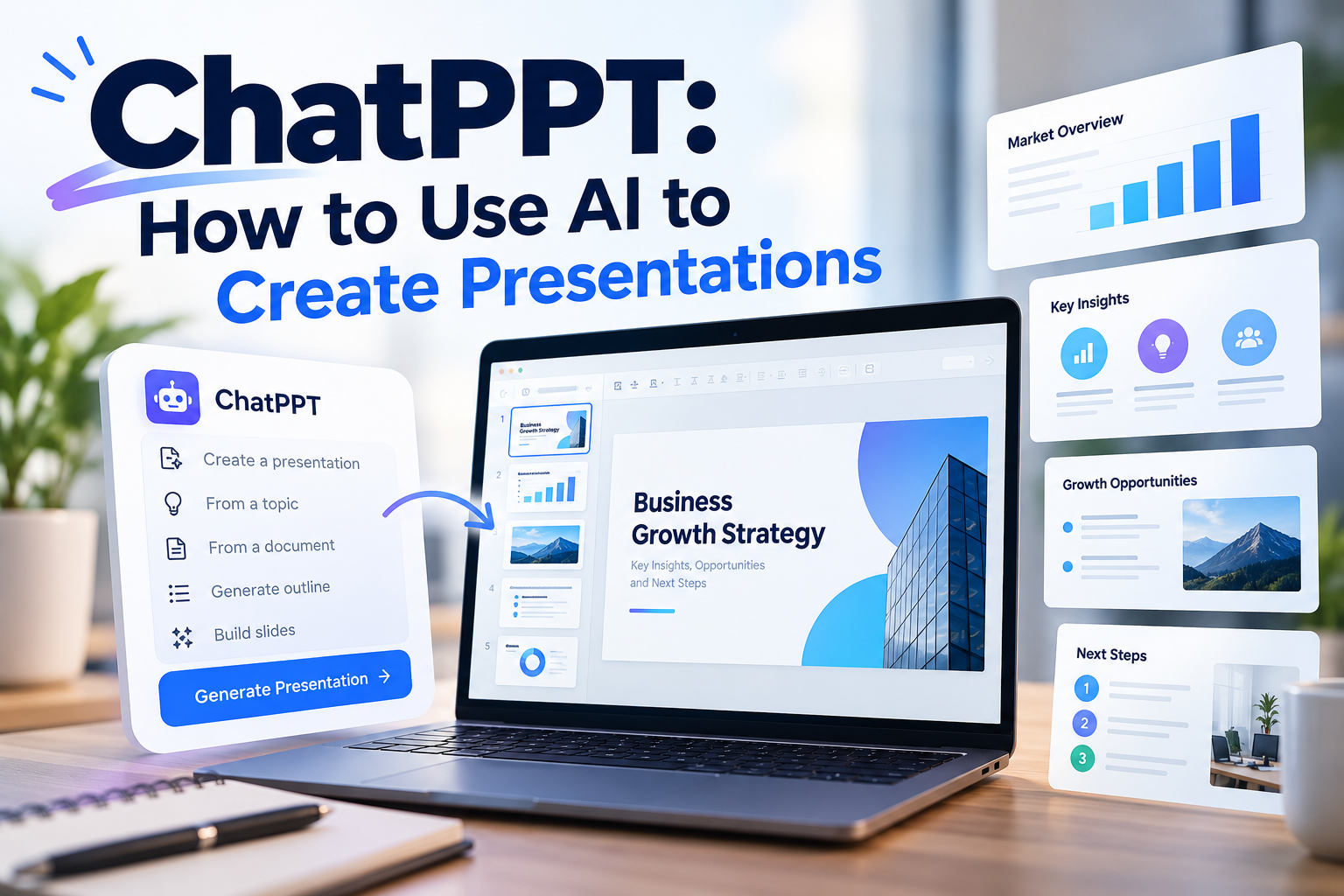
ChatPPT is a search term people may use when looking for AI-powered tools that turn text, documents, or ideas into presentations. It can also refer to a specific presentation platform or be confused with ChatGPT, OpenAI’s conversational AI assistant. Understanding this distinction matters because different tools offer different features, pricing plans, and export options.
AI presentation tools can help students prepare class projects, marketers build campaign decks, and businesses turn lengthy reports into structured slides. Instead of creating every slide manually, users can often start with a topic, outline, or document and let an AI system generate a first draft. However, the quality of the result depends on the tool, the instructions, and the accuracy of the source material. This guide explains what ChatPPT may refer to, how AI presentation creation works, what to consider before using such a tool, and which alternatives are worth exploring.
What Is ChatPPT?
ChatPPT is the name associated with AI-powered presentation tools designed to simplify the process of creating PowerPoint slides. ChatPPT.com describes a workflow that generates presentation outlines, slide content, charts, and layouts from a topic or uploaded document. It also advertises presentation polishing and export options.
The name can be confusing because multiple websites and products use similar branding. Different services may have different interfaces, features, pricing plans, and export capabilities. Users should verify the exact product before creating an account or purchasing a subscription.
The central idea is straightforward: instead of starting with a blank slide, you provide the subject, purpose, audience, and available material. The tool then helps turn that information into an organized presentation.
Who Can Benefit From ChatPPT?
ChatPPT-style tools can be useful for:
- Students: Preparing classroom presentations, research summaries, and project proposals.
- Teachers: Organizing lessons, explaining complex topics, and preparing educational slides.
- Business professionals: Creating meeting decks, business proposals, and quarterly reports.
- Marketers: Presenting campaign strategies, product launches, and audience research.
- Content creators: Turning articles, tutorials, and reports into visual presentations.
These are potential use cases rather than a guarantee that every ChatPPT product supports every workflow. Available features depend on the specific platform and its current plan.
How Does ChatPPT Work?
Most AI presentation generators combine language processing with presentation templates and layout systems. The language model helps organize information and draft text, while the presentation software arranges that content into slides.
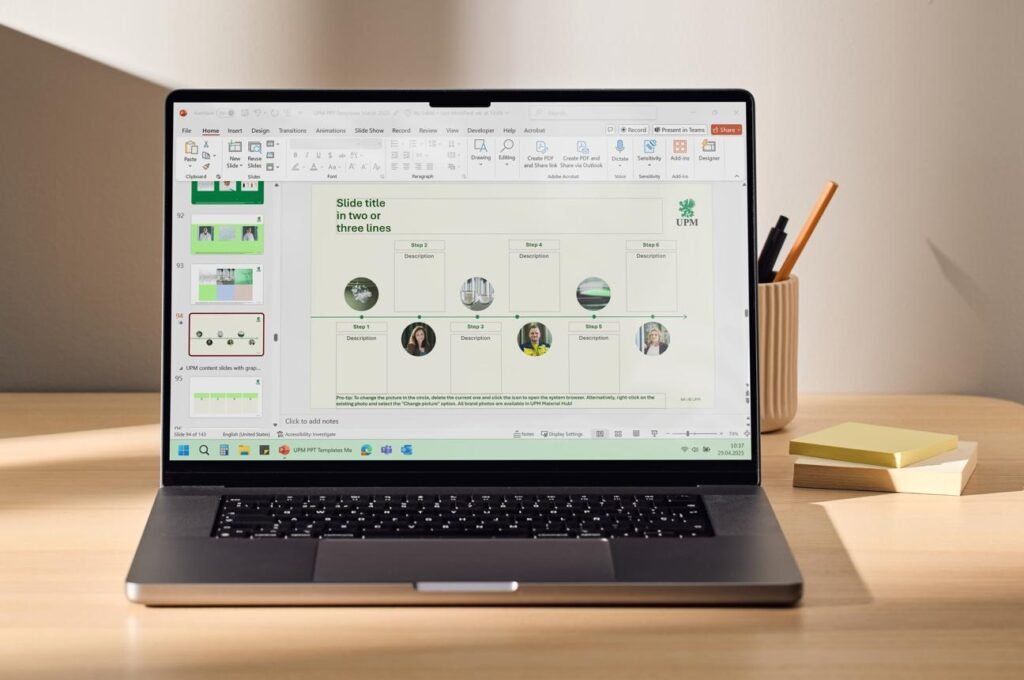
1. Provide a topic or source material
Enter a subject, paste an outline, or upload a supported document if the platform offers that option. Clear source material gives the system a better starting point.
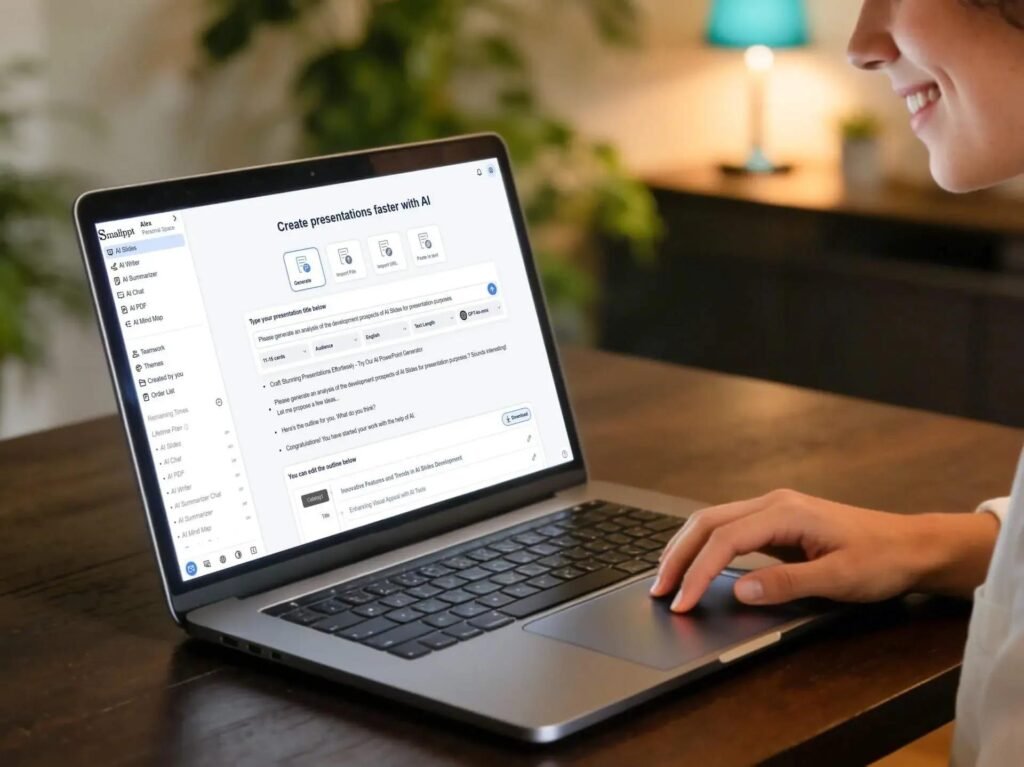
2. Generate the structure and content
The AI organizes the topic into sections, proposes slide titles, and drafts supporting points. Some tools can also suggest charts or visuals.
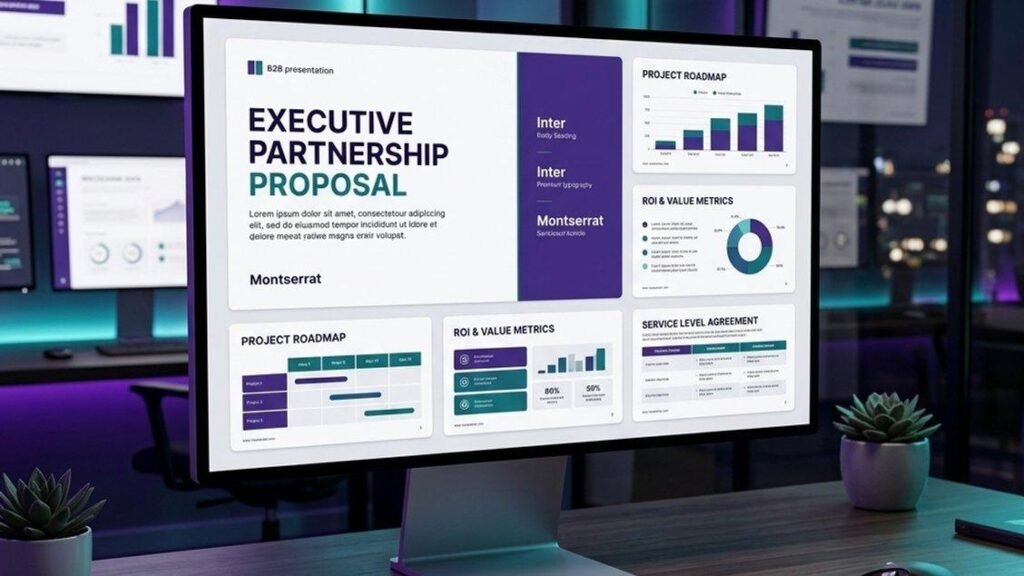
3. Apply a visual design
A template or layout engine places headings, text, images, and other elements on slides. You may be able to choose a theme, color palette, or presentation style.

4. Review and export
Check the facts, improve the wording, correct layout problems, and confirm that charts communicate the intended message. Export or share the finished deck if your plan supports it.
ChatPPT.com’s advertised workflow follows a similar process: enter a topic or upload material, generate an outline and slide content, and then polish and export the presentation.
The AI Technology Behind Presentation Generation
Several technical concepts help explain how these tools operate.
Large language models (LLMs) generate and organize text based on patterns learned during training and the information supplied in the prompt. They can suggest an outline, rewrite paragraphs, summarize documents, and propose slide titles.
Natural language processing helps software interpret instructions such as “create a presentation for senior managers” or “explain this topic to beginners.”
Automated layout systems determine how content fits into slide templates. They can position text and visual elements, although complex layouts may still need manual adjustment.
Retrieval-augmented generation (RAG) is a technique that can retrieve relevant information from connected documents or other sources before generating an answer. It can help ground outputs in source material, but it should not be assumed that every ChatPPT tool uses RAG or verifies every claim.
These components work together to produce a draft. They do not eliminate the need for human judgment, especially when the presentation contains research findings, financial figures, or technical claims.
Key Features to Look for in ChatPPT
The available features depend on which product you use. ChatPPT.com advertises AI-generated slide content, templates, charts, presentation polishing, and export options.
Before choosing a tool, consider the following capabilities.
AI Presentation Generation
The main attraction is the ability to create a presentation from a prompt.
For example, a student could enter:
“Create a 10-slide presentation explaining renewable energy for high school students. Cover solar, wind, hydropower, advantages, limitations, and future challenges. Use simple English and provide one main takeaway per slide.”
A capable presentation generator can use this brief to propose a sequence of slides and draft their content. The student should still verify scientific claims and make sure the explanation matches the assignment.
Document-to-Presentation Conversion
Some tools accept documents and extract their key points to create a slide deck. This is useful when a report already contains the information needed for a presentation.
A marketing manager, for example, could use an existing campaign report as the starting point for a team meeting deck.
The important limitation is that summarization can remove qualifications or context. Review the generated slides against the original document before presenting them.
Templates and Visual Customization
Templates help maintain consistent typography, colors, spacing, and slide layouts. A suitable template can make a presentation easier to follow without requiring advanced graphic design skills.
Look for options that let you change:
- Color schemes and fonts.
- Slide layouts and visual hierarchy.
- Images, icons, and charts.
- Text size and content placement.
- Branding elements, where supported.
A professional design is not simply decorative. Consistent layouts help the audience distinguish key findings from supporting information.
Charts and Visual Elements
Charts can make numerical information easier to understand. Some AI presentation platforms advertise automated chart generation and visualization.
However, a generated chart is only as trustworthy as its underlying data. Confirm the source, units, time period, labels, and calculations before using it in a business or academic presentation.
Editing and Export Options
Before investing time in a platform, confirm whether it lets you edit individual slides and export the presentation into a format you can continue editing.
PowerPoint compatibility is particularly important if you need to share a deck with colleagues or use an organization’s existing template. Check the exported file for missing fonts, shifted elements, altered charts, or images that no longer fit correctly.
How to Use ChatPPT: A Practical Step-by-Step Guide
The easiest way to evaluate ChatPPT is to create a small presentation based on a topic you already understand. This makes it easier to spot inaccurate information and judge whether the tool saves time.
Step 1: Visit the Correct Website
Find the official website for the ChatPPT product you want to try. Confirm that its features and available plans match your needs before signing up.
Step 2: Choose a Topic
Select a subject with a clear goal. Instead of entering a broad request such as “digital marketing,” specify the intended audience and purpose.
For example, you might create a presentation about how small businesses can use social media to attract customers.
Step 3: Write a Detailed Prompt
A useful prompt should explain what the presentation needs to accomplish.
Example AI presentation prompt:
Create a 10-slide presentation titled “Digital Marketing for Small Businesses.”
- Audience: Beginners and small business owners.
- Purpose: Explain practical digital marketing strategies.
- Include: SEO, social media, email marketing, content planning, and performance measurement.
- Use clear English and concise bullet points.
- Include realistic examples and charts only when reliable data is available.
- End with an actionable 30-day marketing plan.
- Use a clean, professional design with consistent colors and readable fonts.
Step 4: Review the Generated Outline
If the tool provides an outline before generating the slides, review it carefully. Check that the presentation moves logically from the problem to the explanation, examples, and recommendations.
Remove unnecessary sections and add any important topics the AI missed.
Step 5: Improve the Slides
Review each slide for clarity and accuracy. Replace vague claims with specific evidence, shorten lengthy paragraphs, and add relevant visuals where they improve understanding.
Avoid putting the entire contents of a report onto one slide. A presentation should support a spoken explanation, not function as a wall of text.
Step 6: Export and Test the Presentation
Export the deck in the format you need, if available. Open the exported file in the intended presentation software and check its formatting.
If you will present it in person, rehearse the slides in presentation mode. This reveals issues that may not be obvious while editing.
Real-World Applications of ChatPPT
AI-generated presentations can be useful in several settings, but the best workflow depends on the task.
Education and research
Students can transform notes into a structured presentation, while researchers can use AI to prepare an initial outline of a paper or report. They should verify citations and preserve important limitations in the original research.
Business reporting
Teams can turn existing reports into meeting decks. A useful presentation highlights key results, explains unusual changes, and identifies decisions that need attention.
Marketing and sales
Marketers can draft campaign proposals, product launch decks, and client presentations. They should confirm product specifications, pricing, performance claims, and customer data before sharing the deck.
Teaching and training
Instructors can use AI to organize lessons into manageable sections and create discussion prompts. Subject-matter review remains important when accuracy matters.
Advantages and Limitations of ChatPPT
AI presentation tools can reduce repetitive work, but they are not a substitute for understanding the subject.
| Advantages | Limitations |
|---|---|
| Creates an initial slide structure quickly | May produce inaccurate or unsupported claims |
| Helps users who lack design experience | Layouts can require manual correction |
| Can summarize lengthy source material | Important details may be lost during summarization |
| Provides a starting point for different presentation types | Results may feel generic without specific instructions |
| May offer convenient export and sharing options | Some features may require a paid subscription |
The Risk of AI Hallucinations
A language model can generate information that sounds convincing but is incorrect. This is commonly called an AI hallucination.
For instance, a tool might generate a market analysis containing an unsupported growth rate or attribute a statement to a report that does not contain it.
To reduce this risk:
- Provide reliable source documents.
- Ask for citations or sources when the tool supports them.
- Verify important numbers against the original source.
- Check dates, names, quotations, and technical claims.
- Remove any claim that cannot be substantiated.
A polished slide design should never be treated as proof that the underlying information is correct.
Privacy and Confidential Information
Uploading documents to an AI service can involve sharing information with an external provider. This matters when working with unpublished research, internal company reports, financial records, or customer information.
Before uploading sensitive material, review the provider’s privacy policy, data-retention practices, and applicable account settings. Do not assume that a tool is safe for confidential information simply because it advertises security features.
For regulated or business-critical work, check whether the service meets your organization’s requirements before using it.
ChatPPT Pricing: Is It Free?
ChatPPT’s pricing depends on the particular product, account, and subscription plan. Some services offer limited free usage, while others restrict certain features to paid plans.
Before paying, check these points:
- Free usage: How many presentations or generations are included?
- Export limits: Can you download editable PowerPoint files, or are certain formats restricted?
- Credits: Does each generation or editing action consume credits?
- Subscriptions: Is billing monthly or annually, and how does cancellation work?
- Commercial use: Are the output and included visual assets permitted for your intended purpose?
Pricing and features can change, so verify the current terms on the platform you choose. Check the currency, billing period, taxes, and included features before purchasing.
ChatPPT vs. ChatGPT and Other Presentation Tools
ChatPPT and ChatGPT are not interchangeable names. ChatPPT refers to presentation-focused products, while ChatGPT is a broader AI assistant that can help with writing, analysis, planning, and other tasks.
OpenAI also offers a dedicated ChatGPT Slides experience that supports creating and refining decks, collaborating with teammates, and presenting or exporting slides. Availability depends on the product and plan.
| Tool | Main purpose | Consider it when |
|---|---|---|
| ChatPPT | AI-assisted presentation generation | You want a presentation-focused workflow |
| ChatGPT | General-purpose AI assistance | You need help with research, outlining, rewriting, and analysis |
| ChatGPT Slides | Creating and refining presentations within ChatGPT | You need slide creation and collaborative editing in the same workflow |
| Microsoft PowerPoint | Presentation creation and editing | You need a familiar presentation editor and control over slide design |
| Canva | Visual design and presentation creation | You prioritize templates and visual customization |
These tools have different capabilities, and the comparison is based on their general purposes rather than a claim that every tool supports identical features. Confirm current plans, integrations, and export options before deciding.
Which Tool Should You Choose?
Choose a dedicated presentation generator if your priority is turning a topic or document into a first draft with minimal setup.
Choose ChatGPT when you need help developing the argument, explaining technical concepts, analyzing material, or revising content before building the final slides.
Choose a traditional presentation editor when precise layout control, organizational templates, and detailed manual editing are central to your work.
You can also combine tools. For example, use ChatGPT to develop and fact-check an outline, generate a draft deck with a presentation tool, and finish the design in PowerPoint.
Tips for Getting Better Results From ChatPPT
A useful prompt describes more than a topic. It gives the AI enough information to make meaningful decisions about structure, detail, and presentation style.
Try these practices:
- Define the audience. A presentation for executives needs different detail from one designed for beginners.
- Specify the purpose. Explain whether the goal is to teach, persuade, report results, or request approval.
- Set a reasonable slide count. This helps control the scope and prevents unnecessary detail.
- Provide source material. Use verified documents and data where accuracy is important.
- Describe the design. Specify a professional, educational, minimalist, or brand-aligned style.
- Request a clear takeaway. Each slide should communicate one central message.
- Review the finished deck. Correct errors, improve the narrative, and remove repetitive content.
For data-heavy presentations, explicitly instruct the tool not to invent figures or citations. If reliable data is unavailable, ask it to identify the gap instead of filling it with a guess.
Frequently Asked Questions About ChatPPT
1. What is ChatPPT used for?
ChatPPT is used for AI-assisted presentation creation. Depending on the product, it can help generate slide outlines, draft content, apply layouts, and export presentations.
2. Is ChatPPT free to use?
Some ChatPPT products advertise free usage or limited free generations. Available features and restrictions vary, so check the specific platform’s current pricing details.
3. Can ChatPPT create PowerPoint presentations?
Some ChatPPT platforms advertise PowerPoint export. Confirm the available format and editing capabilities on your account before starting a project.
4. Is ChatPPT the same as ChatGPT?
No. ChatPPT is the name of presentation-focused services, while ChatGPT is OpenAI’s general-purpose AI assistant. ChatGPT also has presentation-related capabilities.
5. Can ChatPPT generate presentations from documents?
Some ChatPPT platforms advertise document uploads and content extraction for presentation generation. Supported file types and upload limits may vary.
6. Are ChatPPT presentations always accurate?
No. AI-generated content can contain errors, omit context, or include unsupported claims. Verify important facts, calculations, and references before using a presentation.
7. Is ChatPPT suitable for business presentations?
It can be a useful starting point for proposals, reports, and internal meetings. Review confidentiality requirements, financial figures, branding, and factual accuracy before sharing business material.
Conclusion
ChatPPT can make presentation creation more efficient by helping users move from an initial idea or document to a structured slide deck. Its value lies in reducing repetitive work, providing a starting design, and helping users organize information without building every slide from scratch.
However, the quality of the final presentation still depends on the source material, the clarity of the instructions, and the review process. AI-generated slides can contain mistakes, lose important context, or present information in a way that looks polished but communicates little. Treat the generated deck as a draft rather than a finished product.
Before choosing a platform, test it with a real task, verify its export options, review its privacy terms, and compare its pricing with your needs. A good presentation tool should save time while giving you enough control to produce accurate, clear, and useful slides.


1 comment on “ChatPPT: How to Use AI to Create Presentations”